
I was staring at my Wazuh dashboard, knowing full well that Sysmon was running on my endpoints, yet the alerts were silent. The default Wazuh ruleset treats most Sysmon events as Level 0 (ignored) or bundles them under generic descriptions, making it impossible to see the actual distribution of activity. I didn’t want a silent log collector; I wanted a breakdown of exactly what was happening on my network.
This post documents how I mapped specific Sysmon Event IDs to custom Wazuh rules, raised their visibility, and built a dashboard visualisation to track the noise.
The Mapping Logic
Before writing the XML, we need the reference map. Wazuh’s default ruleset (0595-win-sysmon_rules.xml) assigns specific internal Rule IDs to Sysmon Event IDs. We need these Parent IDs to chain our custom rules (if_sid).
Here is the full reference map for the built-in rules:
| Sysmon Event ID | Wazuh Parent Rule ID | Sysmon Event ID | Wazuh Parent Rule ID |
| 1 (Process Create) | 61603 | 16 (Config Change) | 61644 |
| 2 (File Time) | 61604 | 17 (Pipe Created) | 61645 |
| 3 (Network Conn) | 61605 | 18 (Pipe Connected) | 61646 |
| 4 (Service State) | 61606 | 19 (WMI Filter) | 61647 |
| 5 (Process Term) | 61607 | 20 (WMI Consumer) | 61648 |
| 6 (Driver Loaded) | 61608 | 21 (WMI Binding) | 61649 |
| 7 (Image Loaded) | 61609 | 22 (DNS Query) | 61650 |
| 8 (Remote Thread) | 61610 | 23 (File Delete) | 61651 |
| 9 (Raw Access) | 61611 | 24 (Clipboard) | 61652 |
| 10 (Process Access) | 61612 | 25 (Proc Tampering) | 61653 |
| 11 (File Created) | 61613 | 26 (File Delete Det) | 61654 |
| 12 (Reg Add/Del) | 61614 | 255 (Error) | 61655 |
| 13 (Reg Set) | 61615 | ||
| 14 (Reg Rename) | 61616 | ||
| 15 (File Stream) | 61617 |
Note: You can verify these on your manager with:
sudo grep -n "rule id\|if_sid\|eventID\|sysmon_event" /var/ossec/ruleset/rules/0595-win-sysmon_rules.xml
Technical Execution
We are not editing the default ruleset (which gets overwritten on updates). We are creating a new file that “hooks” into the parent rules above using <if_sid> and re-alerts at Level 3 with a human-readable description.
Step 1: Create the Custom Rules
I used sysmon_custom.xml to keep this logic isolated.
Environment Access:
To apply this, open a terminal on your Wazuh Manager.
Bash
sudo tee /var/ossec/etc/rules/sysmon_custom.xml << 'ENDOFRULES'<group name="sysmon_custom,"> <rule id="100200" level="3"> <if_sid>61603</if_sid> <description>Sysmon: 1 - Process Create</description> </rule> <rule id="100201" level="3"> <if_sid>61604</if_sid> <description>Sysmon: 2 - File Creation Time Changed</description> </rule> <rule id="100202" level="3"> <if_sid>61605</if_sid> <description>Sysmon: 3 - Network Connection</description> </rule> <rule id="100203" level="3"> <if_sid>61606</if_sid> <description>Sysmon: 4 - Sysmon Service State Changed</description> </rule> <rule id="100204" level="3"> <if_sid>61607</if_sid> <description>Sysmon: 5 - Process Terminated</description> </rule> <rule id="100205" level="3"> <if_sid>61608</if_sid> <description>Sysmon: 6 - Driver Loaded</description> </rule> <rule id="100206" level="3"> <if_sid>61609</if_sid> <description>Sysmon: 7 - Image Loaded (DLL)</description> </rule> <rule id="100207" level="3"> <if_sid>61610</if_sid> <description>Sysmon: 8 - Create Remote Thread</description> </rule> <rule id="100208" level="3"> <if_sid>61611</if_sid> <description>Sysmon: 9 - Raw Access Read</description> </rule> <rule id="100209" level="3"> <if_sid>61612</if_sid> <description>Sysmon: 10 - Process Access</description> </rule> <rule id="100210" level="3"> <if_sid>61613</if_sid> <description>Sysmon: 11 - File Created</description> </rule> <rule id="100211" level="3"> <if_sid>61614</if_sid> <description>Sysmon: 12 - Registry Object Added/Deleted</description> </rule> <rule id="100212" level="3"> <if_sid>61615</if_sid> <description>Sysmon: 13 - Registry Value Set</description> </rule> <rule id="100213" level="3"> <if_sid>61616</if_sid> <description>Sysmon: 14 - Registry Object Renamed</description> </rule> <rule id="100214" level="3"> <if_sid>61617</if_sid> <description>Sysmon: 15 - File Stream Created (ADS)</description> </rule> <rule id="100215" level="3"> <if_sid>61644</if_sid> <description>Sysmon: 16 - Config State Changed</description> </rule> <rule id="100216" level="3"> <if_sid>61645</if_sid> <description>Sysmon: 17 - Pipe Created</description> </rule> <rule id="100217" level="3"> <if_sid>61646</if_sid> <description>Sysmon: 18 - Pipe Connected</description> </rule> <rule id="100218" level="3"> <if_sid>61647</if_sid> <description>Sysmon: 19 - WMI Event Filter Created</description> </rule> <rule id="100219" level="3"> <if_sid>61648</if_sid> <description>Sysmon: 20 - WMI Event Consumer Created</description> </rule> <rule id="100220" level="3"> <if_sid>61649</if_sid> <description>Sysmon: 21 - WMI Event Consumer Binding</description> </rule> <rule id="100221" level="3"> <if_sid>61650</if_sid> <description>Sysmon: 22 - DNS Query</description> </rule> <rule id="100222" level="3"> <if_sid>61651</if_sid> <description>Sysmon: 23 - File Delete (Archived)</description> </rule> <rule id="100223" level="3"> <if_sid>61652</if_sid> <description>Sysmon: 24 - Clipboard Change</description> </rule> <rule id="100224" level="3"> <if_sid>61653</if_sid> <description>Sysmon: 25 - Process Tampering</description> </rule> <rule id="100225" level="3"> <if_sid>61654</if_sid> <description>Sysmon: 26 - File Delete Detected</description> </rule> <rule id="100226" level="3"> <if_sid>61600</if_sid> <field name="win.system.eventID">^27$</field> <description>Sysmon: 27 - File Block Executable</description> </rule> <rule id="100227" level="3"> <if_sid>61600</if_sid> <field name="win.system.eventID">^28$</field> <description>Sysmon: 28 - File Block Shredding</description> </rule> <rule id="100228" level="3"> <if_sid>61600</if_sid> <field name="win.system.eventID">^29$</field> <description>Sysmon: 29 - File Executable Detected</description> </rule> <rule id="100229" level="1"> <if_sid>61655</if_sid> <description>Sysmon: 255 - Error</description> </rule></group>ENDOFRULESStep 2: Restart and Verify
Apply the changes:
Bash
sudo systemctl restart wazuh-managersudo systemctl status wazuh-managerThe manager should restart cleanly (consuming around ~250MB memory on v4.14.2).
Step 3: The Dashboard Visualisation
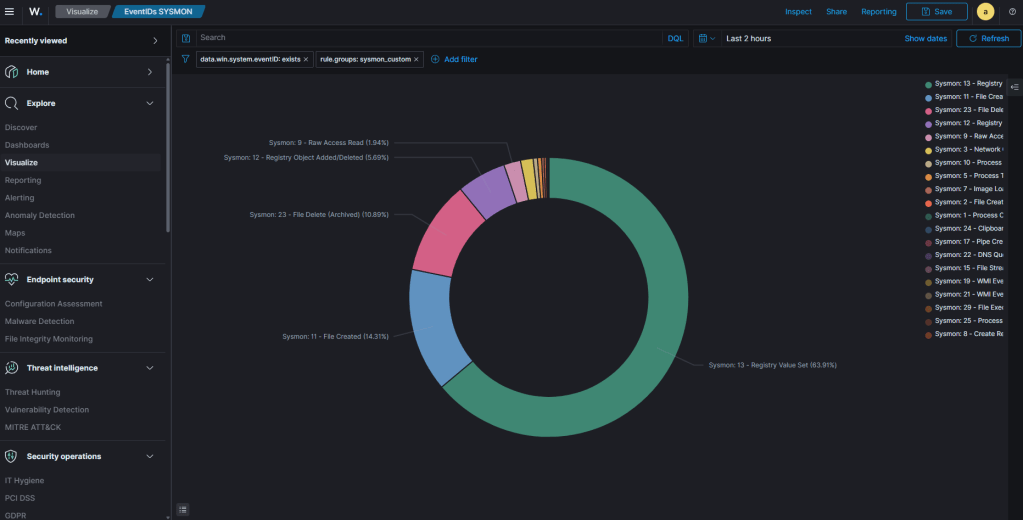
Now that the data is tagged with useful descriptions like “Sysmon: 22 – DNS Query,” we can build the chart.
- Navigate: In Wazuh (OpenSearch Dashboards), go to Dashboards -> Visualize -> Create visualization.
- Chart Type: Select Pie chart.
- Source: Choose the
wazuh-alerts-*index pattern. - Add Filter:
- Field:
rule.groups - Operator:
is - Value:
sysmon_custom
- Field:
- Configure Buckets:
- Click Add -> Split slices.
- Aggregation:
Terms - Field:
rule.description - Size:
30 - Order by:
Metric Count,Descending
- Time Range: Set the time picker to start after your restart. Old events won’t be retroactively renamed.
- Save: Save as “Sysmon Event Type Distribution”.
Notes
During testing, I compiled a list of pitfalls and a quick reference guide to keep the setup clean.
Critical Pitfalls to Avoid
| Pitfall | Consequence | Correct Approach |
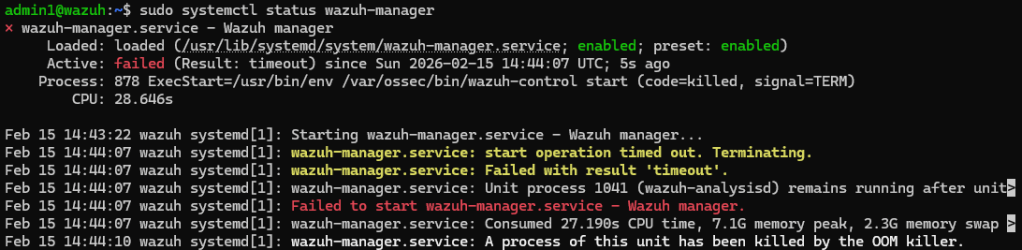
Using <if_group>sysmon</if_group> | analysisd consumes 7GB+ RAM and OOM-kills on restart. | Use <if_sid> with specific parent rule IDs. |
Setting outer group to <group name="sysmon,"> | Circular group reference causes infinite recursion. | Use <group name="sysmon_custom,">. |
Leaving a catch-all rule in local_rules.xml | Overrides specific descriptions with generic “Global Activity” labels. | Remove the catch-all rule. |
OOM Error

Quick Reference
| Item | Value |
| Custom rules file | /var/ossec/etc/rules/sysmon_custom.xml |
| Local rules (check for conflicts) | /var/ossec/etc/rules/local_rules.xml |
| Built-in Sysmon rules (reference) | /var/ossec/ruleset/rules/0595-win-sysmon_rules.xml |
| Dashboard filter field | rule.groups is sysmon_custom |
| Dashboard bucket field | rule.description |
| Custom rule ID range | 100200–100229 |
 Blue-Lab