

The scenario: A Windows endpoint slowly runs out of disk space. The culprit isn’t logs, user data, or a rogue application — it’s Sysmon, quietly archiving a copy of every deleted file into C:\Sysmon. 44 GB gone. And ironically, the #1 file deleter causing it? Wazuh — your SIEM agent.
What Happened
A single line in the Sysmon config — never touched since initial deployment — was the root cause:
<ArchiveDirectory>Sysmon</ArchiveDirectory>
That directive tells Sysmon to save a physical .bin copy of every deleted file to C:\Sysmon. Combined with Event ID 23 (FileDelete) set to log everything with zero exclusions, it was silently archiving thousands of files per day. The folder had SYSTEM-only ACLs, making it invisible to standard tools until WinDirStat (run under an elevated context) revealed the true size.
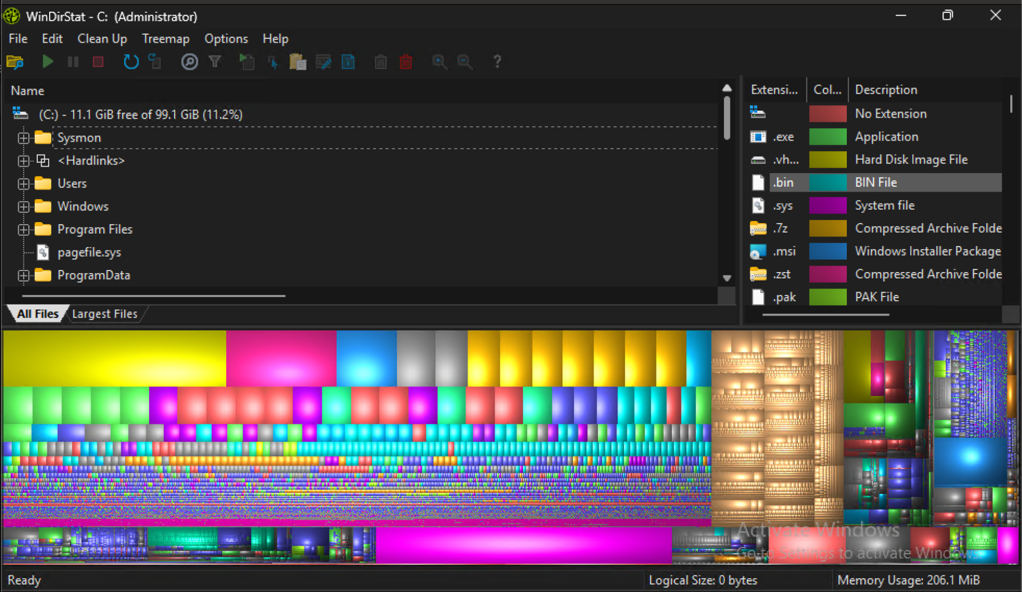
The config comments even flagged it as “testing mode” — it was never intended for production.
The #1 offender? Wazuh — the security agent on the same box — constantly rotating .state files in its queue directory, generating thousands of deletions per day. Sysmon archived every one. Wazuh was also forwarding those exact Sysmon events back to the SIEM: completely redundant noise about its own file churn.
Breakdown of the top offenders from 10,000 Event ID 23 records:
- Wazuh queue directory — 42%
- Claude desktop temp files — 24%
- Edge update installer cache — 12%
- Windows prefetch + Update — remainder
Diagnosis
Step 1 — Find the folder
C:\Sysmon had SYSTEM-only ACLs. Standard Explorer and most admin tools couldn’t read it. WinDirStat run under an elevated or SYSTEM context will reflect those permissions and reveal the folder size.
Step 2 — Query Event ID 23
Pull the last 10,000 FileDelete events and group by path prefix to find the top offenders:
Get-WinEvent -LogName "Microsoft-Windows-Sysmon/Operational" -MaxEvents 10000 | Where-Object { $_.Id -eq 23 } | Select-Object -ExpandProperty Message | Select-String "TargetFilename" | Group-Object { ($_ -replace '.*TargetFilename: ([^\r\n]+).*','$1').Split('\')[0..2] -join '\' } | Sort-Object Count -Descending | Select-Object -First 20
Step 3 — Confirm the archive config
Select-String -Path "C:\tools\Sysmon\sysmonconfig.xml" -Pattern "ArchiveDirectory|FileDelete"
If you see <ArchiveDirectory> with no exclusions on Event ID 23, you’ve found the problem.
The Fix
1. Add exclusions to Event ID 23
<EventFiltering> <RuleGroup name="" groupRelation="or"> <FileDelete onmatch="exclude"> <TargetFilename condition="contains">C:\Program Files (x86)\ossec-agent\queue</TargetFilename> <TargetFilename condition="contains">\Temp\</TargetFilename> <TargetFilename condition="contains">\Prefetch\</TargetFilename> <TargetFilename condition="contains">\AppData\Local\Microsoft\EdgeUpdate</TargetFilename> <TargetFilename condition="contains">\SoftwareDistribution\Download</TargetFilename> </FileDelete> </RuleGroup></EventFiltering>
2. Apply the config
sysmon64 -c C:\tools\Sysmon\sysmonconfig.xml
If this fails with a wevtutil manifest conflict (common on Windows 11), reinstall as SYSTEM via PsExec:
psexec -s -i sysmon64 -accepteula -i -c C:\tools\Sysmon\sysmonconfig.xml
3. Clear the archive
SYSTEM-owned folder requires a SYSTEM-context scheduled task:
$action = New-ScheduledTaskAction -Execute "cmd.exe" -Argument '/c rmdir /s /q C:\Sysmon'$trigger = New-ScheduledTaskTrigger -Once -At (Get-Date).AddMinutes(1)$settings = New-ScheduledTaskSettingsSet -DeleteExpiredTaskAfter 00:00:01Register-ScheduledTask -TaskName "ClearSysmonArchive" -Action $action -Trigger $trigger -RunLevel Highest -User "SYSTEM" -Settings $settings
4. Verify
Get-Service Sysmon64, SysmonDrv | Select-Object Name, StatusGet-WinEvent -LogName "Microsoft-Windows-Sysmon/Operational" -MaxEvents 5
Fleet Remediation
If this config was pushed fleet-wide, every endpoint running Wazuh will have the same problem. Push the updated sysmonconfig.xml via RMM or GPO, and run the SYSTEM scheduled task on each endpoint to clear C:\Sysmon. Normal remote admin won’t work due to the SYSTEM-only ACL.
Pentest and Red Team Angles
1. C:\Sysmon as an Accidental Forensic Goldmine
If ArchiveDirectory is enabled and you gain SYSTEM access, C:\Sysmon is a treasure chest. Every deleted file — credentials wiped from memory dumps, temporary configs, staged payloads cleaned up post-execution — has a .bin copy sitting on disk. Add it to your standard post-exploitation checklist. Test it: drop a file with fake credentials, delete it, then check for a .bin copy under SYSTEM.
2. Disk Exhaustion as a DoS Primitive
From a low-privilege context, rapidly writing and deleting files in any world-writable temp directory forces Sysmon to archive each one. At scale this fills the disk, crashing services, corrupting databases, or stopping logging entirely — which may itself be the goal.
3. SIEM Flooding and Alert Fatigue
The Wazuh-Sysmon loop wasn’t just a disk problem — every Event ID 23 was also forwarded to the SIEM. Deliberately generating high-volume FileDelete events buries real activity in noise, particularly effective against SIEMs that prioritise dashboards by volume or that drop alerts under rate limits.
4. WinDirStat Running as SYSTEM — DLL Hijack
WinDirStat has no fixed install path and loads DLLs without fully-qualified paths. If it’s invoked as SYSTEM via a scheduled task (as in the remediation above), it’s a DLL hijack target. Run ProcMon filtered on windirstat.exe with NAME NOT FOUND results to identify candidates. The remediation task itself becomes the attack vector.
5. sysmonconfig.xml Enumeration for Evasion
This file is often world-readable and tells you exactly what’s being logged and what isn’t. Event ID 11 excludes \Temp\? That’s your staging directory. Network connections to certain ranges excluded? That’s your C2 egress path. Read it before moving laterally — it’s as valuable as AV exclusion lists and firewall rules.
6. PsExec SYSTEM Context for ACL Bypass
The remediation used PsExec to access a folder that even local admins couldn’t touch. Many defenders create SYSTEM-only resources assuming admin access is sufficient protection — it isn’t. Any vector yielding SYSTEM (token impersonation, a vulnerable service, a SYSTEM scheduled task) bypasses those ACLs entirely. Audit whether any sensitive paths on your endpoints rely on SYSTEM-only ACLs as load-bearing security.
Tested on Windows 11 with Sysmon v15 and Wazuh 4.x. Exclusion syntax may vary across Sysmon versions — validate against the schema for your deployed version.
 Blue-Lab